"There has been a critical error on this website" means WordPress hit a PHP fatal error and stopped. It's almost always caused by a plugin, theme or custom code that isn't compatible with the current version of WordPress or PHP, often straight after an update or a hosting PHP upgrade. Finding the file named in the error log tells you which one.
Step 1: check your email
WordPress usually emails the site's admin address with the error and a recovery mode link. Recovery mode lets you log in with the broken plugin paused, so you can update or deactivate it.
Step 2: read the error
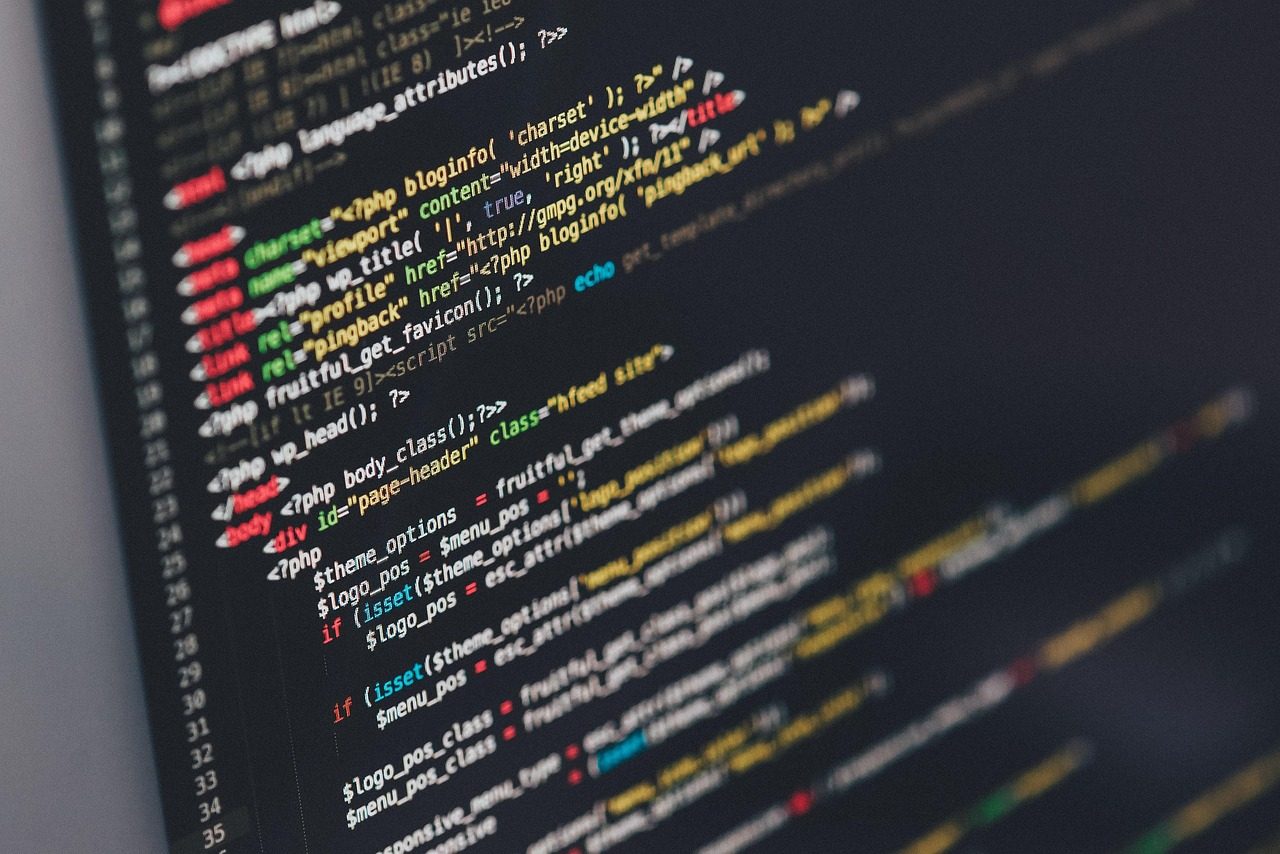
If there's no email, turn on debugging by setting WP_DEBUG and WP_DEBUG_LOG to true in wp-config.php, reload the page and open the debug.log file in the wp-content folder. The last "PHP Fatal error" line names the file and line. The folder after plugins/ or themes/ is your culprit.
Step 3: fix the cause
- Update the plugin or theme if a newer version exists.
- If not, deactivate it by renaming its folder over FTP or in the hosting file manager, and find a maintained replacement.
- If the host just upgraded PHP, temporarily switching back can bring the site up while you fix the code properly.
Turn debugging off again afterwards. If you'd rather not edit server files, our WordPress emergency fix starts with a same-day call.